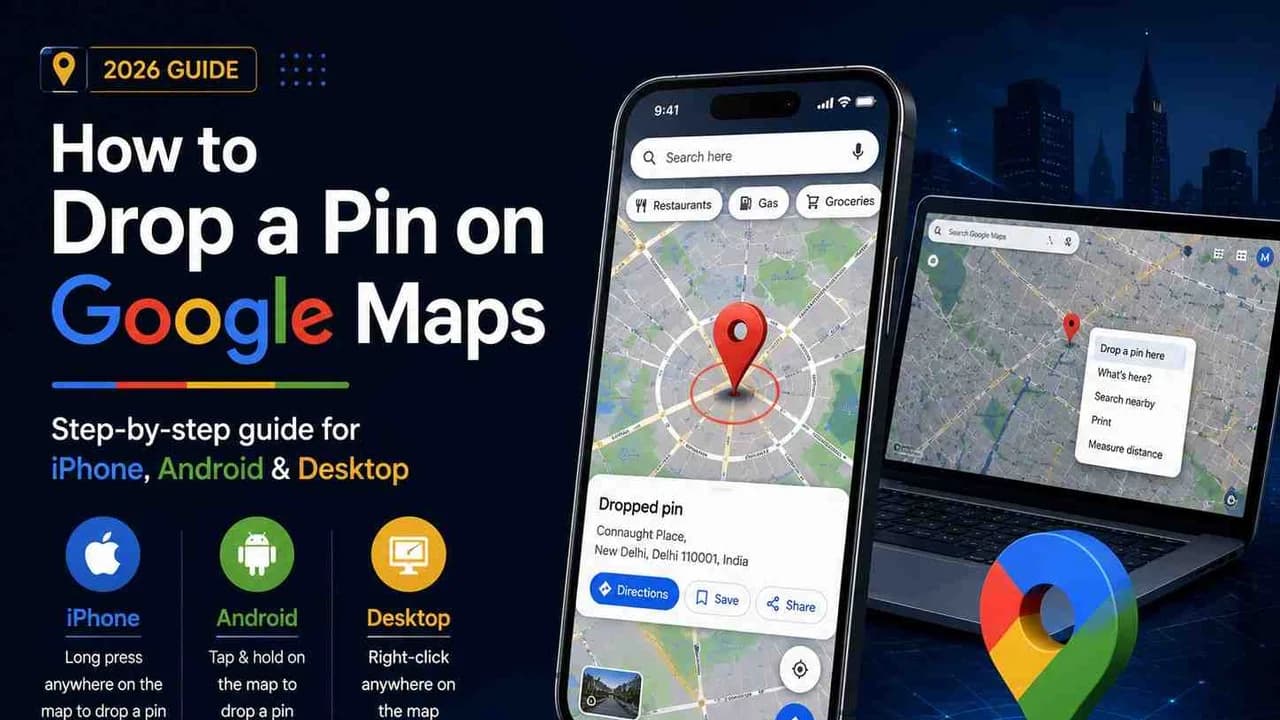
How to Drop a Pin on Google Maps (iPhone, Android & Desktop) - 2026 Guide
Free Consultation
Talk to Our Experts
What Does It Mean to Drop a Pin on Google Maps?
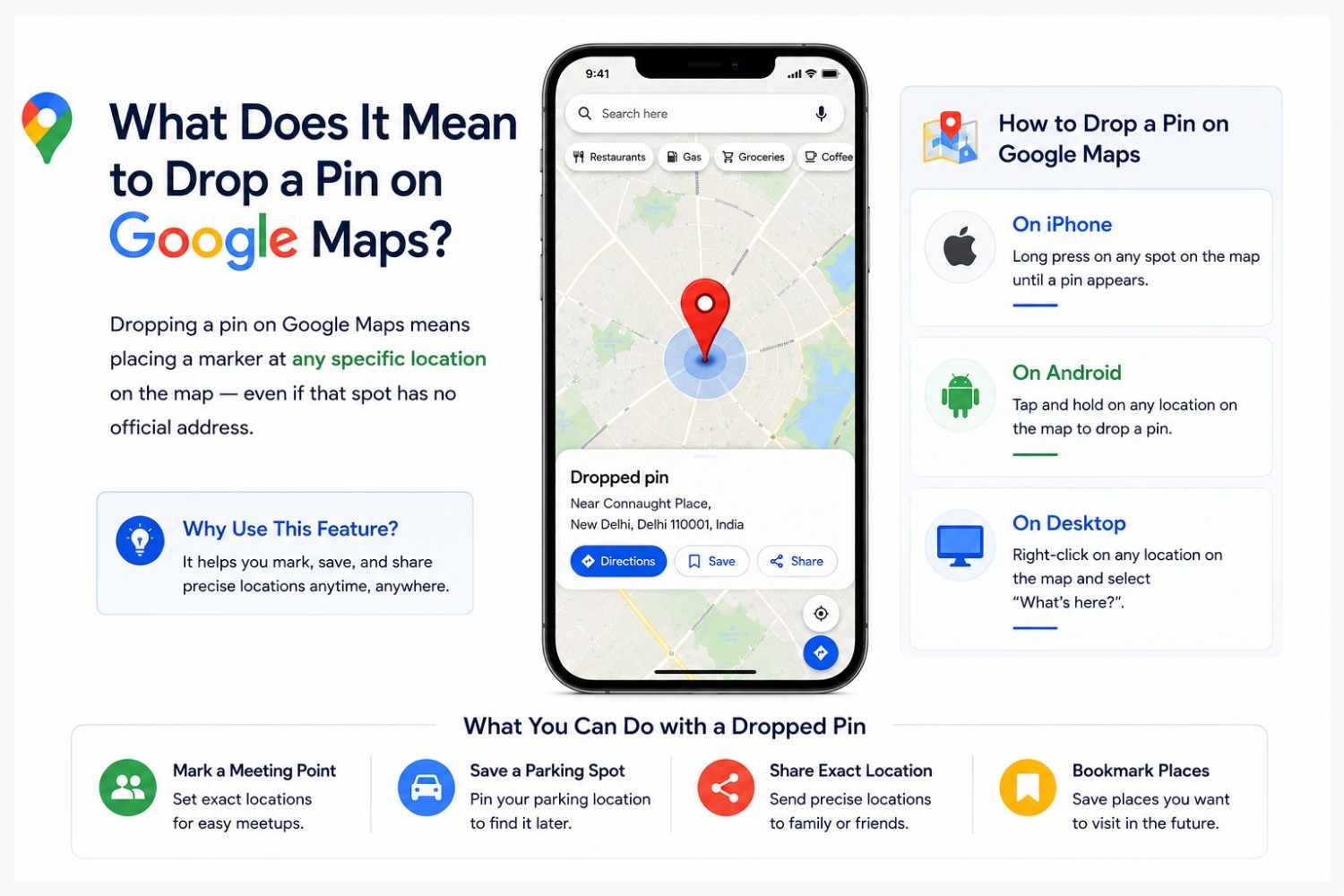
Dropping a pin on Google Maps means placing a marker at any specific location on the map even…
How to Drop a Pin on Google Maps — iPhone (iOS)
- Open the Google Maps app on your iPhone.
- Navigate to the location where you want to drop a pin use the search bar or scroll the map manually.
- Press and hold your finger on the desired spot on the map.
- A red pin will appear, and a panel will slide up from the bottom showing the address or coordinates.
- Tap the pin label at the bottom to expand details you'll see options to get directions, save, or share the location.
- To save the dropped pin, tap "Save" and choose an existing list (like "Favorites" or "Want to Go") or create a new one.
How to Drop a Pin on Google Maps Android
Open Google Maps on your Android device.
- Find the location you want to mark either by searching or scrolling the map.
- Long press (tap and hold) on the exact spot on the map.
- A red pin drops and a card appears at the bottom with the address or GPS coordinates.
- Tap the bottom card to access full options Directions, Save, Share, Label, and more.
- Tap "Save" to add the pin to a list, or tap "Share" to send the location via WhatsApp, SMS, or any other app.
Note for Android users: If you're using Google Maps in Lite mode (often on older devices or slow…
How to Drop a Pin on Google Maps Desktop (Browser)
- Open Google Maps in your desktop browser.
- Navigate to the location you want to mark use the search bar or drag the map manually.
- Right-click on the exact spot where you want the pin.
- A small context menu appears click "Drop a pin" (it's the first or second option).
- A red pin drops at that location, and an information panel opens on the left side of the screen.
- The panel shows the coordinates, address (if available), and options to get directions or save the location.
- Click "Save" to add it to a list, or click the Share icon to copy a link to the pin.
How to Drop a Pin at Your Current Location on Google Maps
On Mobile (iPhone & Android):
On Desktop:
How to Share a Dropped Pin on Google Maps
On iPhone & Android:
On Desktop:
How to Save and Manage Dropped Pins
- Drop a pin using any method above.
- Tap or click "Save."
- Choose from existing lists: Favorites , Want to Go, Traveled or create a custom list.
To view all your saved pins:
- On mobile: Tap "Saved" (bookmark icon) in the bottom navigation bar.
- On desktop: Click the ☰ menu → "Your places" → "Saved."
- To edit or delete a saved pin:
- Go to your saved pins list.
- Tap/click the pin you want to modify.
- Select "Edit" to rename it, or "Remove from list" to delete it.
Bonus: What Else Can You Do With a Dropped Pin?
Final Thoughts
Dropping a pin on Google Maps is one of those deceptively simple features that unlocks a lot of…
Frequently Asked Questions
Question
Q1. Can I drop multiple pins on Google Maps at the same time?
⌄
Question
Q1. Can I drop multiple pins on Google Maps at the same time?
Answer
Google Maps only shows one dropped pin at a time. To save multiple locations, use the "Save to list" feature for each pin, or use Google My Maps which supports multiple custom pins simultaneously.
Question
Q2. Does dropping a pin on Google Maps work offline?
⌄
Question
Q2. Does dropping a pin on Google Maps work offline?
Answer
No. Dropping and sharing a pin requires an internet connection. However, if you've downloaded an offline map, you can view previously saved pins without connectivity.
Question
Q3. How do I drop a pin on Google Maps without an address?
⌄
Question
Q3. How do I drop a pin on Google Maps without an address?
Answer
Simply long press any spot on the map even in a remote area with no address. Google Maps will show the GPS coordinates (latitude and longitude) instead. You can share these coordinates directly.
Question
Q4. Can I send a dropped pin from iPhone to an Android user?
⌄
Question
Q4. Can I send a dropped pin from iPhone to an Android user?
Answer
Yes. The shared pin link is universal it opens correctly on any device, operating system, or browser. The recipient doesn't need an iPhone or Google Maps app installed.
Question
Q5. How is a dropped pin different from a saved place on Google Maps?
⌄
Question
Q5. How is a dropped pin different from a saved place on Google Maps?
Answer
A dropped pin is a temporary marker placed by long-pressing the map it disappears when you navigate away unless you save it. A saved place is a location you've bookmarked permanently to a list in your Google account.